How a small office keeps its IT setup out of one person's head
The Wi-Fi password nobody can change, the domain nobody knows who renews. Here's how a six-person office writes down its IT in one table, keeps passwords where they belong, and stops depending on one person.
A new hire asks for the Wi-Fi password. Someone shouts it across the room. It's the same one it was six years ago, because the only person who knows how to change it is out today.
This week one office worker on X told that exact story. Their Wi-Fi password had been the same for six years. Every new hire asked about it. Only the IT guy knew the story behind it, and he refused to change it. Thousands of people liked it, because almost every small office has one of those.
It's funny until the router dies on a Friday and that person is on a plane.
Your office's IT lives in one head, and that's normal
Nobody plans it this way. The person who set up the Wi-Fi also bought the domain, picked the email provider and put the printer on the network. It was faster for them to do it than to explain it. Five years later, they're the only map.
Small offices don't have an IT department, so the knowledge piles up wherever it landed first. That's not a failure of discipline. It's what happens when the person who knows is also busy doing their real job.
One person who works in IT put the fix in four short lines: if nobody knows how a system was set up, keeping it running gets hard. So document the design, record big changes, keep credentials out of the docs, and review them now and then.
That third point is the one people skip. So let's start there.
Passwords go in a password manager. Everything else goes in a table.
The first mistake is writing the Wi-Fi password into a shared doc. Now it's in every copy, every export and every screenshot. A list of how your office runs and a vault of the keys to it are two different things.

The password manager holds every login, shared by vault so the right people see the right ones. Bitwarden Teams is $4 per user a month, billed yearly, and there are others like it. Pick one and use it.
The table holds everything around those logins: what you have, who owns it, who backs them up, when it renews, which vault the login lives in, and what to do when it breaks. None of that is secret. All of it is what you need at 9 am when the internet is down.
One table for the whole office
Northwind is a six-person studio. They keep their IT on a single table in Team Brain, next to their client work.
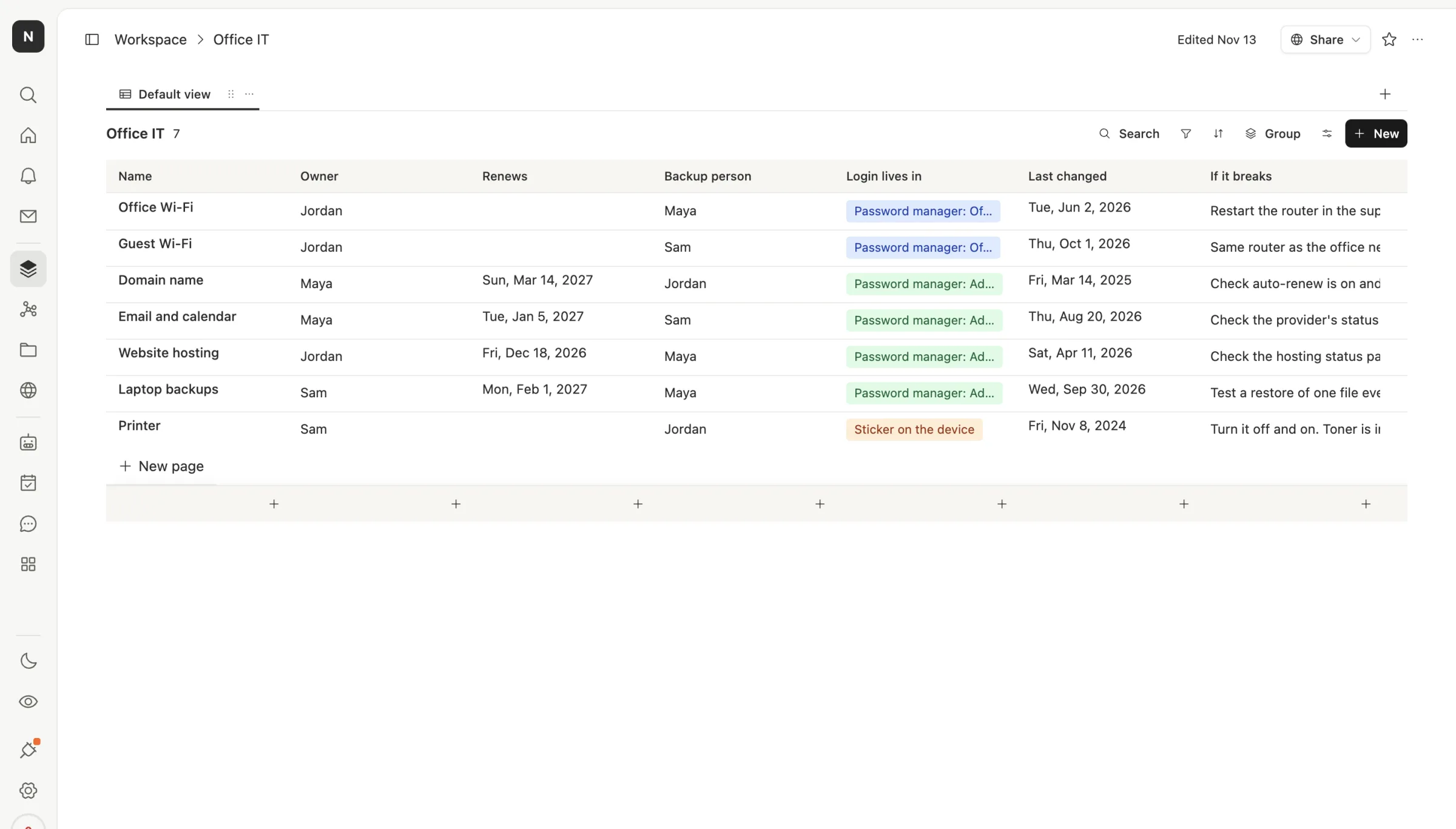
Seven rows. Each one answers the same questions:
- Owner and backup person. Two names on every row. If one is away, the other can act.
- Login lives in. The vault name, not the password. "Password manager: Admin" tells you where to look without telling anyone what's inside.
- Last changed. The printer's login hasn't changed in two years. Now everyone can see that, instead of one person half-remembering it.
- Renews. The website hosting renews December 18. If the card on file expired, you find out from this table, not from a dead site.
- If it breaks. One line for the first thing to try.
A firm that runs IT for small businesses gives the same advice for outages: name a main person and a backup, and know who reaches customers if systems go down. The table makes that visible for every single thing you run.
Open a row and the fix is right there
Each row opens into a page. That's where the longer steps go, written for whoever happens to be in the office.
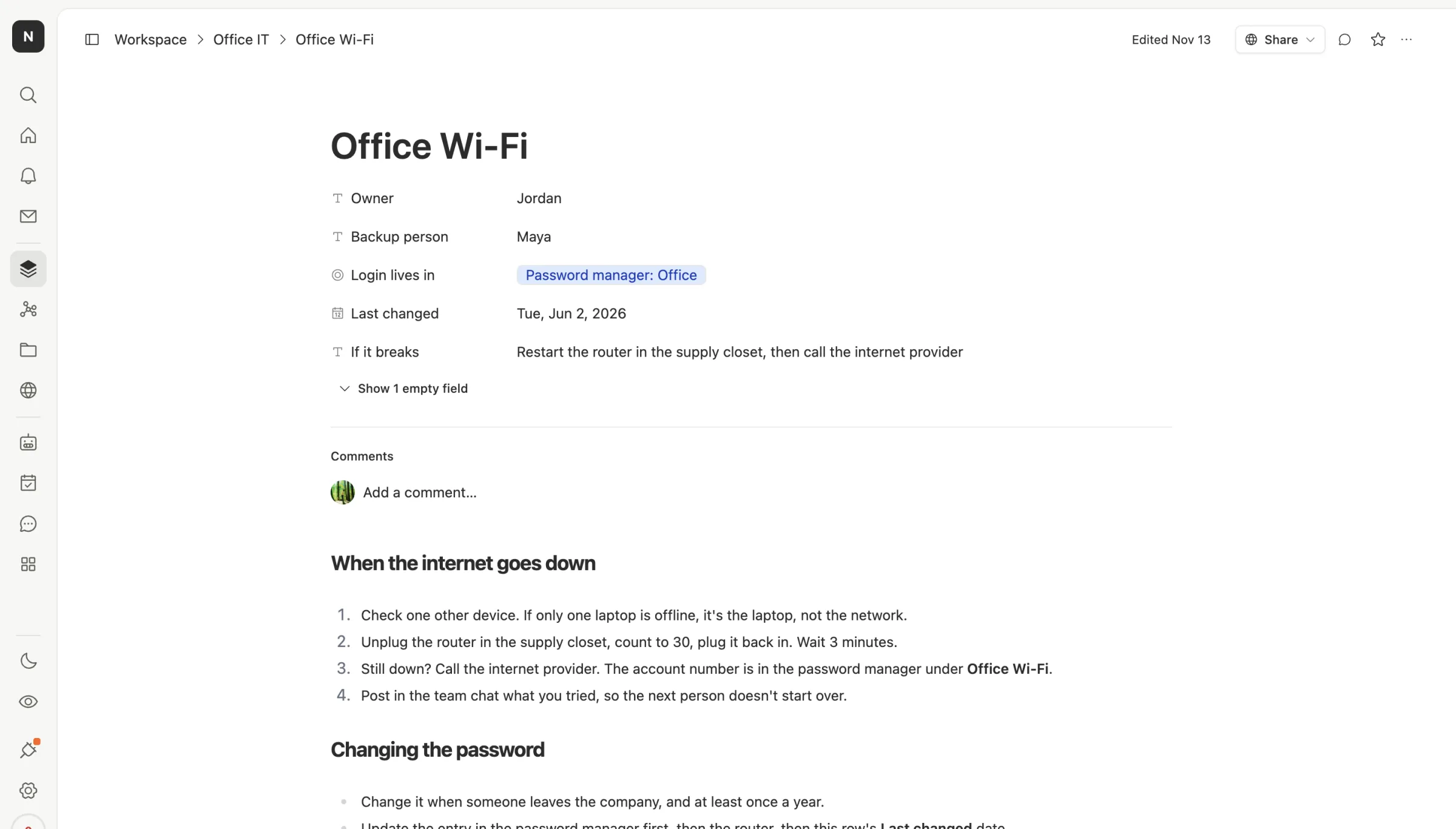
Northwind's Wi-Fi page says to check a second device first, restart the router in the supply closet, then call the provider, with the account number in the password manager. It also says when to change the password: whenever someone leaves, and at least once a year.
That last rule is the whole point of the Wi-Fi story. A password that never changes isn't a funny office quirk. It means everyone who ever worked there can still get on your network.
Get it out of one head in an afternoon

List it. Walk the office and read last month's card statement. Every device you plug in and every service you pay for gets a row. Put two names on each.
Move the logins. Anything written on a sticky note or in a doc goes into the password manager. The table only says which vault.
Write what to do. Three or four steps per row, for the person who isn't the expert. Start with whatever would hurt most if it broke tomorrow.
Check it monthly. Sort by Last changed and Renews. Old passwords and close renewals float to the top. In Team Brain you can also set an agent to read the table on the first of each month and post a short list to the owners: what renews in the next 30 days, and which logins haven't changed in a year. It reads dates. It never sees a password, because there isn't one in the table.
What it costs
The table, the pages and the people are free in Team Brain. There are no seats, so the whole office can open it, including the part-timer who's usually there when things break.
A monthly reminder agent uses a little AI each time it runs, paid per use or on your own AI account. The password manager is a separate bill, and worth it.
Common questions
Should I keep the Wi-Fi password in Team Brain? No. Keep it in a password manager. The table says which vault it's in and who owns it.
We're only four people. Is this overkill? It's seven rows. The smaller the team, the more likely one person holds all of it.
What if our IT person doesn't want to write it down? Start with the rows they don't own, then ask them to fill in only the "If it breaks" line for theirs. It's easier than a full handover, and it's the line you'll need.
How often should we change shared passwords? Whenever someone with access leaves, and on a schedule you'll actually keep. Write the date in Last changed so everyone can see it.