How to add an AI bot to your team's Telegram group
Your team already talks in Telegram or WhatsApp. Here's how to put an AI bot in that group chat: Telegram's own way with BotFather, and a no-code way with Team Brain where the bot can read and update your team's work.
Someone in the group asks, "What did the client say about the deadline?" Three people scroll. One person opens the notes app. Ten minutes later somebody finds it, pastes a screenshot, and the chat moves on until the next question.
Your team didn't pick the wrong chat app. The answers just live somewhere else. The chat is where the questions are, so that's where the help should be.
People feel this right now. This week one builder said they love having their team's bots work with each other, like teammates in the chat. Another put it simply: most people don't want another app, they want an agent in the chat they already use. And a team using a shared bot asked for the one thing missing: a group chat where several people work with the same bot, instead of each person talking to it alone.

The Telegram way: BotFather plus your own code
Telegram lets anyone make a bot. Its own guide to bot features lays out the start:
- Open @BotFather in Telegram and send
/newbot. - Give it a name and a username. The username has to end in "bot" and can't be changed later.
- BotFather gives you a token. Keep it safe: Telegram warns that anyone with it can control your bot.
That gets you an empty bot. It doesn't answer anything yet. To make it useful you still have to write a program that reads messages with that token, sends them to an AI model, and posts the reply. Then you have to keep that program running somewhere, all day.
There's one more thing that trips up almost everyone. By default, every bot in a Telegram group runs in privacy mode. It only sees commands meant for it, replies to its own messages, and a few other cases. It doesn't see the rest of the conversation. You can turn privacy mode off in BotFather, but Telegram says the bot then has to be removed and added back to the group before the change applies.
If you're a developer, that's an afternoon. If you're not, it's a wall.
Why a plain AI bot still isn't enough
Say you get past the code. Your bot can now chat. But ask it "what did the client say about the deadline?" and it has no idea, because the meeting notes aren't in Telegram. They're in a doc somewhere.
A useful team bot needs three things a plain chatbot doesn't have:
- Your team's work to read from. Notes, clients, tasks.
- Permission to update it. "Mark the Acme proposal as sent" should actually change something.
- Limits. What it can see, who it answers, and how much it can spend in a day.
That's the part we built Team Brain bots for.
The Team Brain way, step by step
A bot in Team Brain is your workspace's AI chat, living inside a messenger. It reads and updates the same docs and tables your team uses. You set it up from the Bots page, no code.
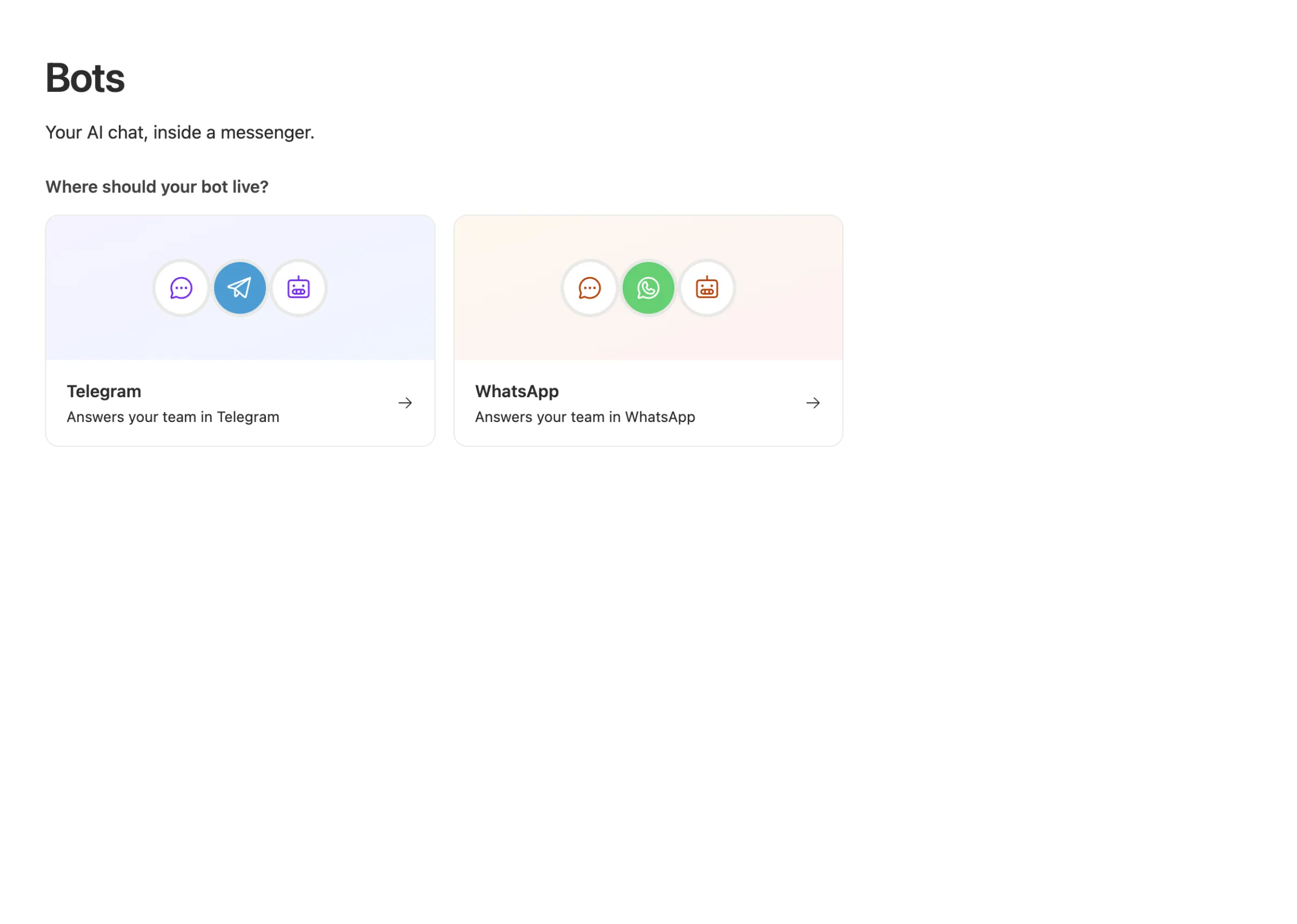
1. Name it. Open Bots, pick Telegram, and type a name.
2. Create it. Click Create in Telegram and confirm in Telegram. If you already made a bot with BotFather, choose I have a bot token and paste it instead.
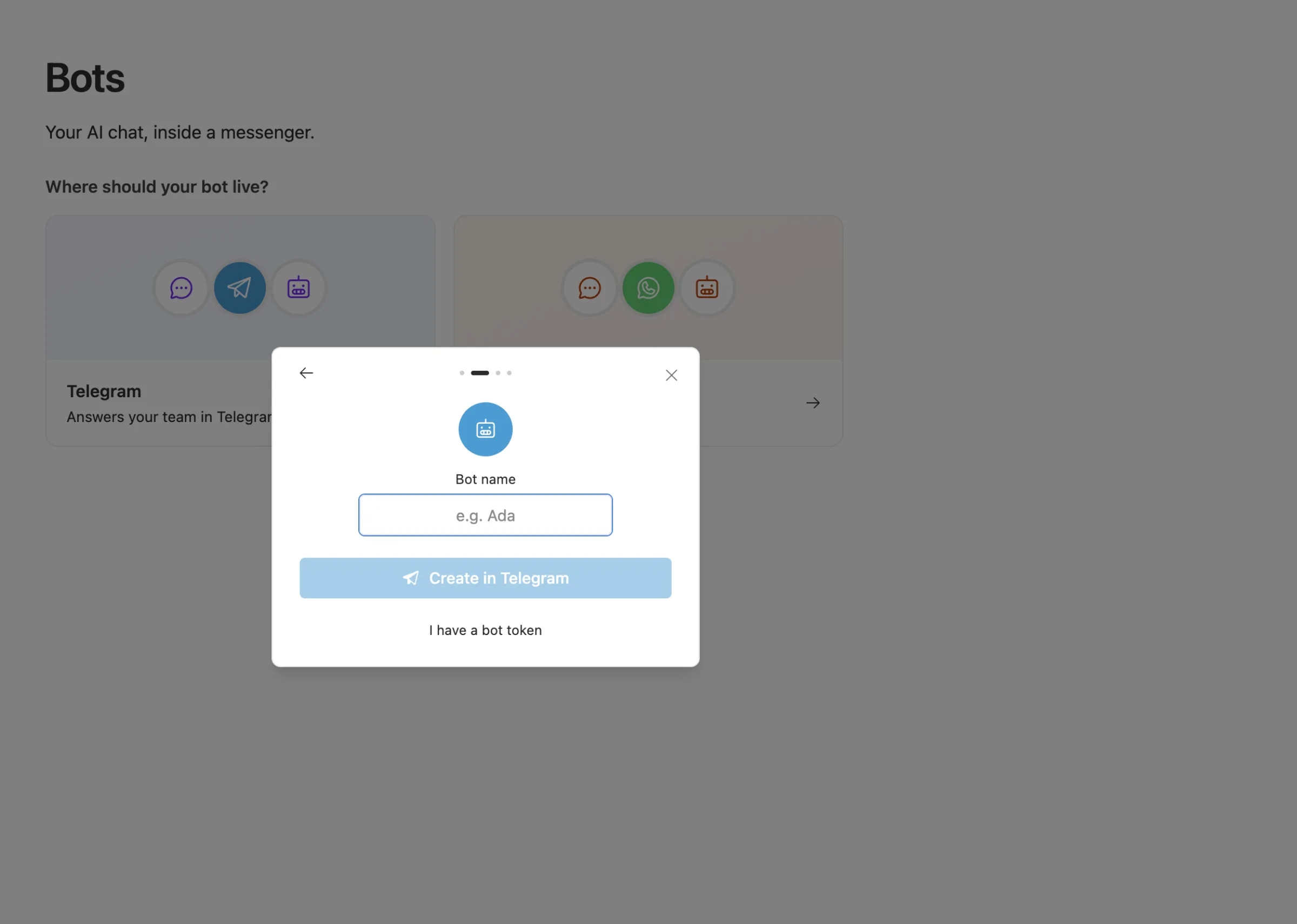
3. Pick what it can see. Under Access you choose between two modes. "What [your name] can see" means everyone who talks to the bot gets answers from your pages. "What each person can see" means each teammate only gets their own: Lena only gets Lena's pages. For most teams the second one is the safe choice.
4. Add it to your group. Add the bot to the Telegram group like any other member, then mention it by name with your question.
5. Write its instructions. Under Instructions, tell it how to talk and what it should always do. "Keep answers to three lines. Link the page you got the answer from." Plain sentences work.
Decide when it speaks up
Nobody wants a bot that replies to every "lol". Each Team Brain bot has an In groups setting with three choices:

- Not in groups: it only answers in private chats.
- When addressed: it answers replies and mentions. This is the right start for most teams.
- Everything: it reads every message. In Telegram this needs privacy mode off, and the bot settings walk you through doing that in BotFather.
You can also switch from Everywhere to Only these chats, so the bot answers only in the groups you approve and stays out of everything else.
Keep it safe and cheap
A bot in a group is a bot that strangers in that group can talk to. So a few settings matter:
- Daily limit. Under Settings you set how many credits the bot may spend in a day. One chatty afternoon can't eat your month.
- It asks before deleting. A bot that's allowed to delete things asks first and acts on a clear yes.
- Message logs. The bot keeps a log of its answers, so you can look back at what it said.
- Pick the model. Settings also holds its AI model, so a bot that mostly looks things up can run on a cheaper one.
Prefer WhatsApp? The same bot can live there instead. You link it by scanning a QR code from WhatsApp's Linked devices screen, the same way you'd link WhatsApp on a laptop.
Common questions
Do I need to write code? No. You name the bot, confirm in Telegram, and add it to your group. Instructions are plain sentences.
Can the bot see every message in my group? Only if you let it. Telegram's privacy mode hides most group messages from bots by default, and Team Brain's In groups setting decides which ones the bot answers.
Will it show my private pages to the group? Not if you choose "What each person can see". Then each person only gets answers from pages they can already open.
What does it cost? The workspace is free for any number of people. The bot uses AI credits when it answers and stays under the daily limit you set. See pricing.