How to keep working when Microsoft 365 is down
Outlook and Teams went down for most of a day this week. Here's what to do in the first 30 minutes of a Microsoft 365 outage, what still works, and the one-page plan a small team can set up before the next one.
Thursday around lunch, Outlook stopped loading. You refreshed it. You restarted your laptop. Someone opened an IT ticket, which went to an inbox that was also down. By evening the whole office knew it wasn't the Wi-Fi.
That was the Microsoft 365 outage of November 12 and 13. Exchange Online stopped answering, and the things built on it went with it. You didn't do anything wrong. When one company runs your mail, your calendar and your chat, one bad day there is a bad day for you.
This is what to do while it's happening, and what to set up so the next one costs you an hour instead of a day.
First, check it isn't just you
Don't start with your laptop. Start with Microsoft's status page, status.cloud.microsoft, and open it from your phone on mobile data. If you're an admin, Microsoft's own steps for the Service health page show every active incident for your company, with an ID you can quote to support. The @MSFT365Status account on X posts the same updates, and during this outage it said Microsoft had stretched the email timeout to 48 hours so delayed mail wouldn't bounce.
If it's on the status page, stop troubleshooting. Restarting won't fix a server in someone else's building.

What still works, and what goes down with it
This outage was a good map of what depends on what. Exchange is the mail server, and a lot of Microsoft 365 leans on it. Going by the status updates quoted in the Hacker News thread, mail delivery and mailbox access broke first. Teams calendar, scheduling and invites broke with it. Chat inside Teams and files stored in SharePoint mostly kept working.

Two smaller things caught people out.
Login codes go to your email. One commenter put it simply: when your email is down, you can't log into anything that sends a code there. Another got stuck exactly that way and watched the code go to the inbox that wasn't working.
Reaching people is harder than it sounds. One company tried to warn staff another way and reached about 2 to 3% of them. If every message you send goes through the thing that's broken, nobody hears you.
Keep working from your laptop
Microsoft has two features that help here, but only if they were on before the outage started.
Outlook keeps a copy of your mail. Microsoft's guide to working offline in Outlook says new Outlook stores your mail, calendar and contacts on your device by default, 30 days of it unless you change the setting. Offline, you can read, search, open attachments, reply and write drafts. New messages wait in the Outbox. You can't create or edit calendar events offline yet. In classic Outlook the same thing is called Cached Exchange Mode, and Microsoft recommends leaving it on.
OneDrive can keep files on your computer. Files marked online-only won't open without a connection, says Microsoft's Files On-Demand page. Right-click the folders you use every week and pick Always keep on this device. New files added to those folders download too.
Do both this week, while everything works. It takes five minutes per laptop.
Write the plan somewhere Microsoft isn't
Here's the part most small teams skip. The plan for "email is down" can't live in email. It can't live in a Word file on OneDrive either, if that file is online-only.
It needs three things:
- Where to check. The status page link, and who on the team watches it.
- Who tells whom. One message on a channel that isn't Microsoft: a group chat, a phone tree, anything.
- Who calls which client. The people with a meeting or a deadline today, and who owns each one.
We keep ours as a short doc in Team Brain. It sits in a different company's cloud, you sign in with a password or Google, and anyone on the team can open it from a phone.
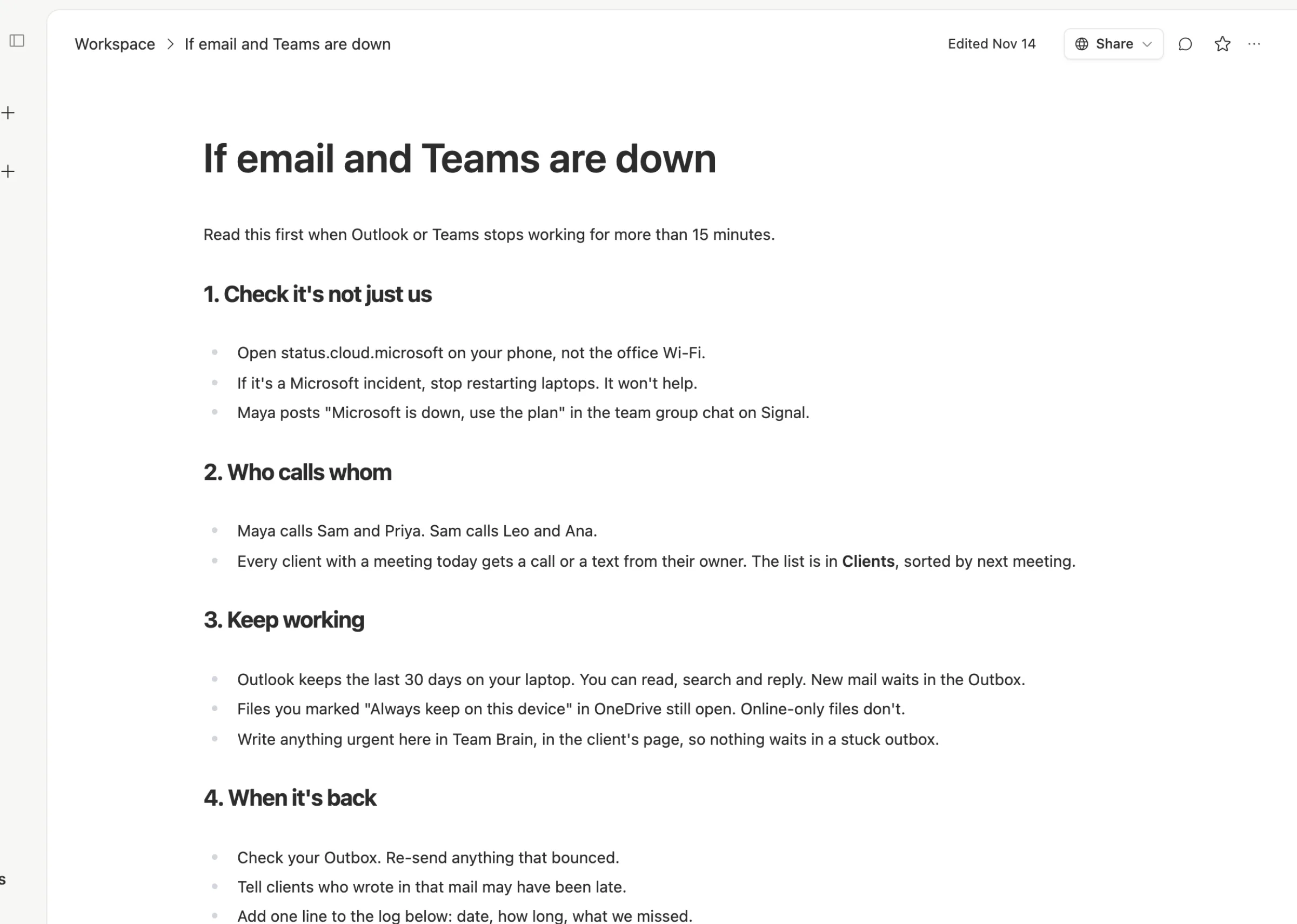
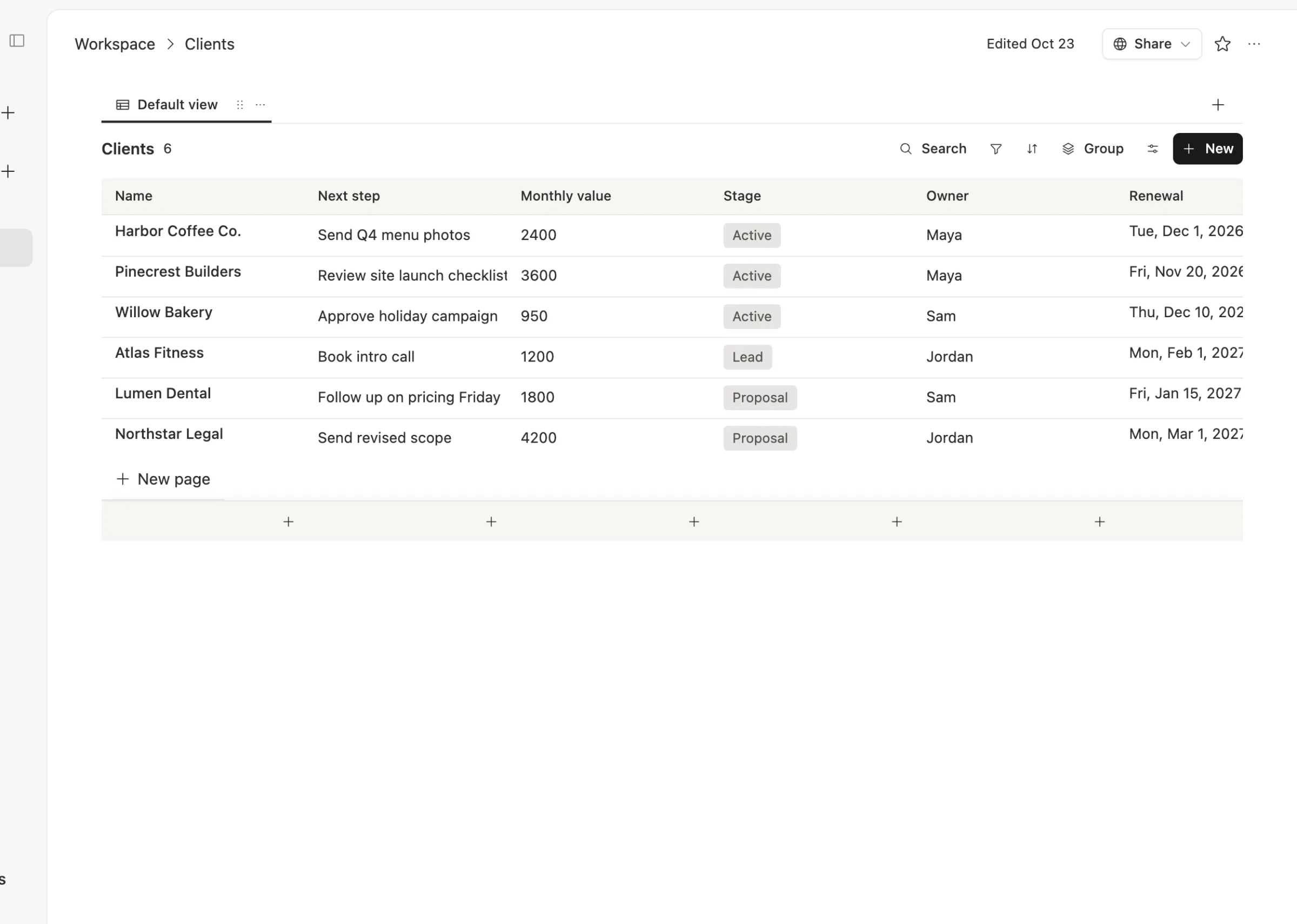
The doc points to the client list, which lives in the same workspace. When mail is down, the owner of each client can see the next step and the renewal date without opening Outlook.
To be fair about it, Team Brain is also a cloud service, and any cloud can have a bad day. The point isn't that one tool never goes down. It's that your plan and your client list shouldn't go down with your email. If you'd rather keep them in a notes app or printed in a drawer, that works too. What matters is that they're somewhere else.
When it comes back
Outages end slowly. Microsoft brought this one back in phases, and some people still had no Outlook the next morning. When mail starts flowing:
- Check your Outbox. Anything you wrote offline should send. Re-send anything that bounced.
- Tell clients who wrote in. Their mail may have reached you late, and they don't know why you went quiet.
- Write one line in the log. The date, how long it lasted, and what you missed. After two of these you'll know what to fix.
One engineer with decades of building systems walked through Microsoft's own updates and made a fair point: the cause is Microsoft's to explain. Your part is the plan, and that part is fully yours.
Common questions
How do I know if Microsoft 365 is down or it's just me? Open status.cloud.microsoft from your phone on mobile data. Admins can also check Health, then Service health, in the Microsoft 365 admin center.
Will I lose emails sent to me during the outage? During this one, Microsoft said it extended the email timeout to 48 hours to keep delayed mail from bouncing. Expect late mail, and check with anyone who says they wrote to you.
Can I use Outlook offline? Yes, for mail that was already synced. You can read, search, reply and draft. New messages wait in the Outbox until you're back online.
Where should our outage plan live? Anywhere that doesn't depend on Microsoft: a doc in another tool, a shared note, or paper. Make sure everyone can open it from a phone. You can start one free in Team Brain.