How to schedule a task in ChatGPT, and when a team agent fits better
ChatGPT can run a prompt every morning and ping you with the answer. Here's how to set up a scheduled task step by step, what the limits are on each plan, and what to use when the result needs to reach your whole team.
Every Monday you open ChatGPT and type the same thing: "Summarize what's due this week." Every Monday you mean to do it at 8, and every Monday you remember at 10:40, after the first meeting already went sideways.
The work isn't hard. Starting it is. One person on X put it in one line: the hard part of a weekly chore is remembering to start it.
That's what scheduled tasks are for. Here's how to set one up in ChatGPT, what each plan allows, and what to do when the answer needs to land somewhere your team can see it.
How to schedule a task in ChatGPT
OpenAI's help page, Scheduled tasks in ChatGPT, lays out the steps. In short:

- Ask for it in plain words. "Every weekday at 8 am, summarize the top three stories about my industry." ChatGPT turns that into a task with a schedule.
- Check the confirmation. ChatGPT shows what it set and when it'll run. If the time is wrong, say so and it'll change it.
- Turn on notifications. Go to Settings, then Notifications, and pick Push, Email or both. For phone alerts, create the task in the ChatGPT mobile app and allow notifications when it asks.
- Manage it in Scheduled. Every task lives in one list called Scheduled. From there you can edit, pause or delete it. You can also open it from a conversation through the ••• menu and See scheduled tasks.
One designer shared a good example: a task that searches for new job openings every morning at 7 and notifies her when results are ready, with a follow-up on where to find the task afterwards.
The limits worth knowing
The help page is clear about these, and they matter before you build a habit on top of them.
- Active tasks per plan: 3 on Free and Go, 5 on Plus, 10 on Business and Edu, 15 on Pro and Enterprise.
- Free plans run at most once a day, in loose windows like morning or night. Hourly schedules and exact times need a paid plan.
- No voice chats, no GPTs, no locked chats. A task made inside a project can't read that project's uploaded files.
- It uses your allowance. A task that runs uses your plan's usage or your workspace's credits, even when it has nothing new to tell you. So pause the ones you stop reading.
That last one surprised people. On Hacker News, one user said they were about to set up a few scheduled tasks, then stopped when they found out what usage they drew on.
Paid plans can also run tasks on events, not just times: a new Gmail message, a Slack channel message, or GitHub pull request activity, once you connect those apps.
Where a personal task stops being enough
A ChatGPT task is great when the answer is for you. It runs, it posts in your chat, and it pings your phone. Someone called it crontab for real life, and that's about right.
It gets awkward when the answer is for your team. The morning summary sits in one person's chat. If they're sick, nobody gets it. If it finds an overdue task, it can't mark it overdue anywhere. And it needs somewhere to read from: as one commenter put it, an assistant needs a place to store your list that it can see.

How to do it in Team Brain
In Team Brain the same idea is an agent. It runs on a schedule, reads your team's tables and docs, and writes its answer back into the workspace, where everyone can see it.
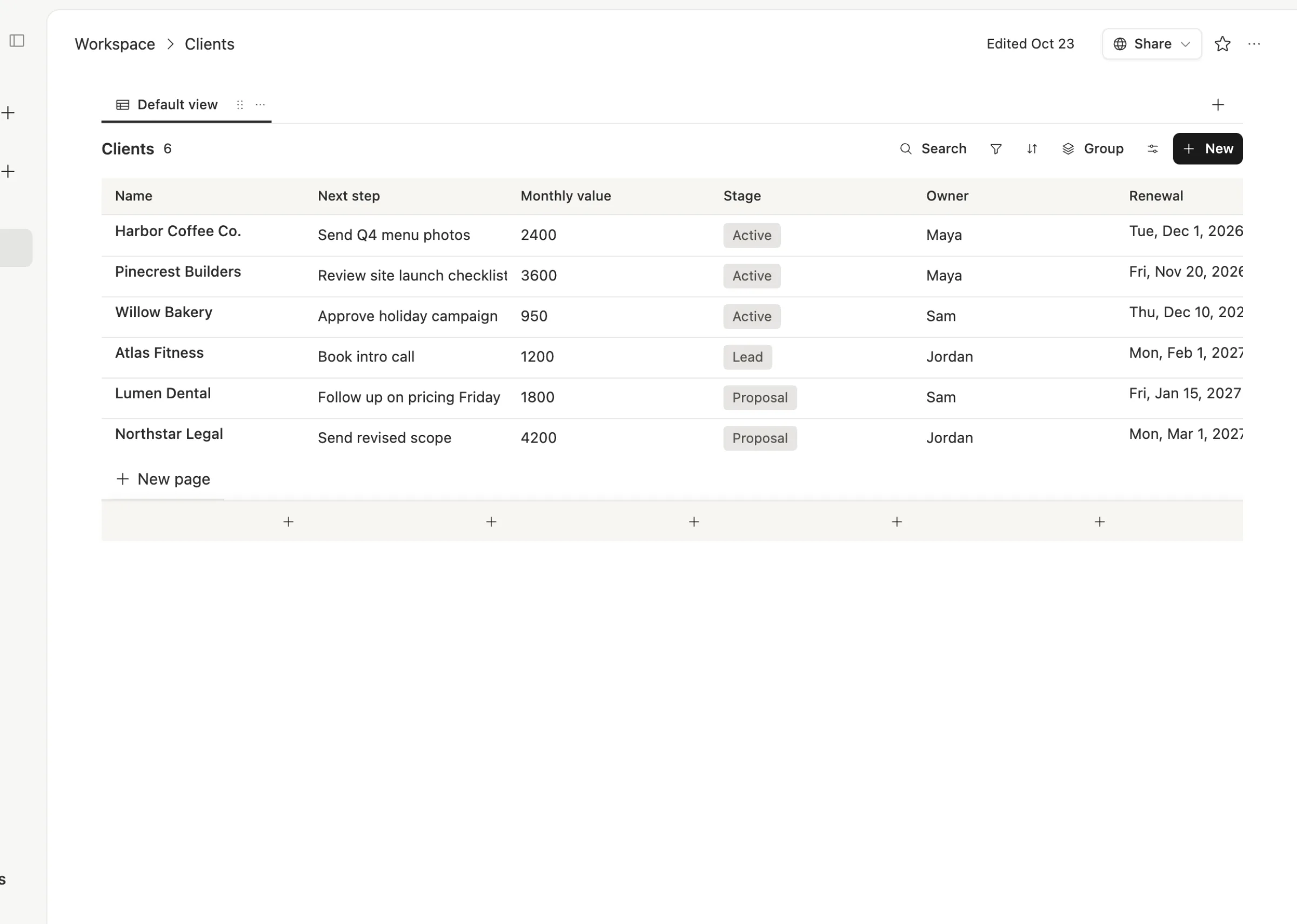
Here's the Morning client digest agent in our demo workspace. Every day at 8 it reads the Clients and Meeting notes tables and writes one short digest for the team: renewals in the next 30 days, next steps that are due, and a line on each meeting from yesterday.
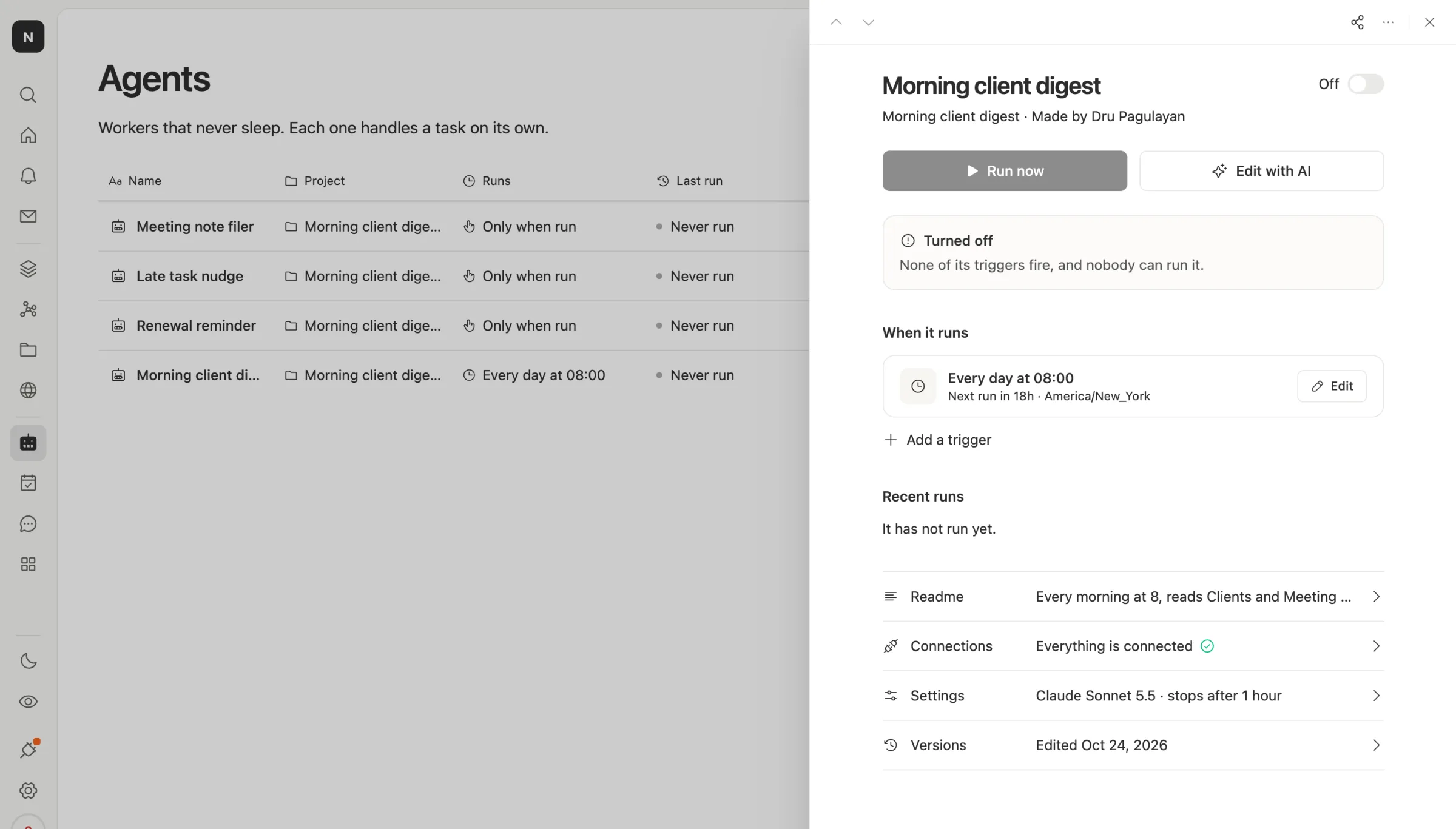
To set one up:
- Create an agent and describe the job in plain words. "Every weekday at 8, read Clients and list renewals in the next 30 days." Edit with AI changes it later the same way.
- Set when it runs. Under When it runs, add a schedule, like every day at 08:00 in your time zone. You can also run it when a row changes, when an email comes in, or when another app calls it.
- Pick the model and a limit. Settings shows which AI model it uses and when it stops, so one run can't run away with your budget.
- Turn it on. Flip the switch at the top. Recent runs shows every run and what it did.
The agent reads the same table your team works in. Nobody has to paste anything into a chat first.
The workspace is free for any number of people. You pay only for the AI each run uses, or connect your own AI account. See our pricing page.
Which one should you use?
Use a ChatGPT scheduled task when the result is just for you: a news brief, a job search, a reminder, a dinner plan. It's quick to set up and already in an app you use.
Use a team agent when the result is for more than one person, when it should read or update shared tables, or when it has to keep running whoever is on holiday. If you already use ChatGPT for your own work, there's no reason to stop. They do different jobs.
Common questions
Can free ChatGPT users schedule tasks? Yes. Free plans get 3 active tasks, and a recurring task can run at most once a day, in a flexible window like morning or night.
How many scheduled tasks can I have? 3 on Free and Go, 5 on Plus, 10 on Business and Edu, 15 on Pro and Enterprise, according to OpenAI's help page.
Do scheduled tasks use up my ChatGPT limits? Yes. Each run uses your plan's allowance or workspace credits, even when it doesn't post an update.
Can a scheduled task update a shared table? A ChatGPT task posts its answer in your chat. To keep a shared table up to date, use an agent that works inside that table, like a Team Brain agent. Start one free at Team Brain.