How to set a spending limit on AI before an agent runs up the bill
One stuck agent can spend a month's budget overnight. Here's how to set a hard monthly limit in OpenAI and Anthropic, why an alert isn't a limit, and how to cap each agent's runs in Team Brain.
You set up an agent on Friday. It worked on Monday, so you stopped watching it. On Thursday the bill came in.
It happens to careful people. One builder said their agent burned through its budget because a tool kept failing and it kept retrying, same call, same error, until the credits were gone. Another spent $500 in credits in 4 hours once their plan's usage ran out. Even a seasoned maker said one new product cost about $4,000 to build with a top model, which made it their first unprofitable one.
None of that is a skill problem. AI is billed by the word, and an agent can send a lot of words while you sleep. The fix is a limit that stops spending, set before you need it.
An alert is not a limit
This is the trap most people fall into. There are three different things, and they do different jobs.

- An alert sends you an email. Requests keep going. If it arrives at 2 am, the agent keeps spending until you wake up.
- A monthly limit stops every request on the account once you hit it. Safe, but blunt. Your good agents stop too.
- A cap per run stops one job that costs more than it should. Everything else keeps working.
You want at least the monthly limit. If you run agents, you want the cap per run as well.
How to set a hard limit in OpenAI
OpenAI lets you set a monthly limit for the whole organization or for each project. Per its help page on managing projects:
- Go to organization settings.
- Select the project, then open Limits.
- Set the Monthly spend limit and the Alert when spend reaches amount.
- Turn on Enforce a hard limit.

Step 4 is the one that matters. The help page is plain about it: without it, the limit only watches. With it on, requests fail once tracked spending reaches the limit. It also says enforcement isn't instant, so recorded spending can go slightly over.
For the whole organization, the same page says to open Limits in organization settings and find Spend. Organization owners can set both. Project owners can set limits for their own project.
Give each agent its own project if you can. Then a runaway agent hits its own wall, not everyone's.
How to set a limit in Anthropic's Console
Anthropic puts every organization on a usage tier with a monthly cap: $500 on Start, $1,000 on Build and $200,000 on Scale, per its rate limits page. You can set your own limit below that:
- Go to Spend limits in the Claude Console.
- Next to your organization's Monthly spend limit, click Adjust limit or Set limit.
- Enter the most you want to spend. It can't be above your tier's cap.
When you hit your own limit, requests fail with a message that says you've reached your specified usage limits, and when access comes back. You can raise or remove the limit to restore access sooner.
You can also set a lower limit for each workspace in the Console, so one project can't use up the whole month. Two rules from the same page: you can't set a spend limit on the default workspace, and the organization limit always applies on top.
Why a monthly limit isn't enough for agents
A monthly limit protects the bank account. It doesn't protect the month.
Say your limit is $300. A stuck agent spends $280 on Tuesday night. Nothing broke the rule, but now your useful agents have $20 left for the next three weeks. One person on X said it well: a max-iterations setting isn't a budget, because every retry resends the whole conversation and later turns cost more.
What you want is a ceiling on each job. A run that costs ten times what it usually does is almost always a run that's stuck.
The Team Brain way, step by step
In Team Brain, every agent has its own limits, right in its settings.

1. Open the agent. Go to Agents and pick the one you want. Its page shows when it runs and its recent runs.
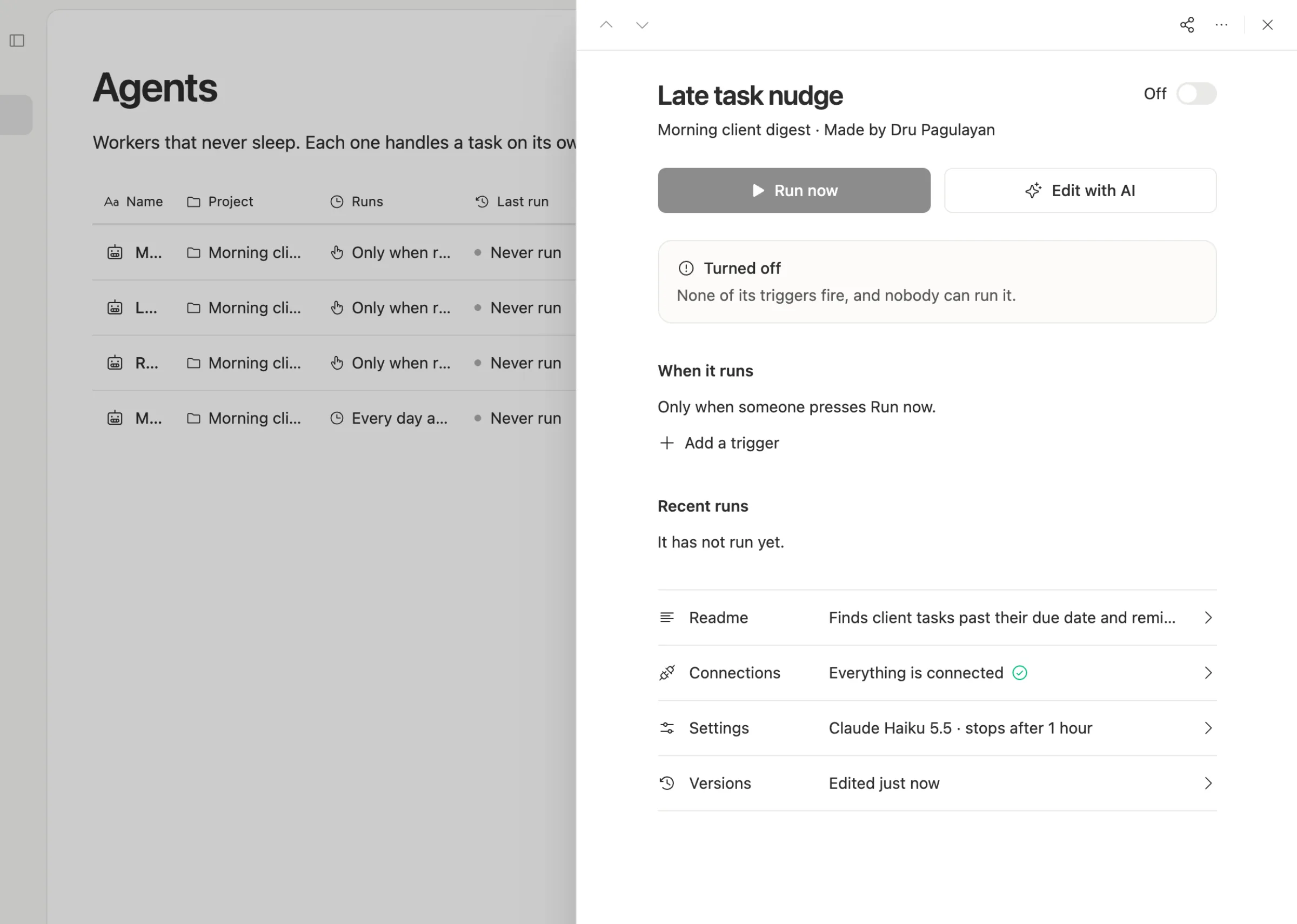
2. Open Settings. Here you pick the model, who pays for its AI, and its limits.
3. Set a cost cap per run. Pick 1, 5, 10, 25 or 100 credits. A run that reaches the cap is stopped. Once the agent has run a few times, the setting shows what a run usually costs, so you can pick a cap with room to spare.
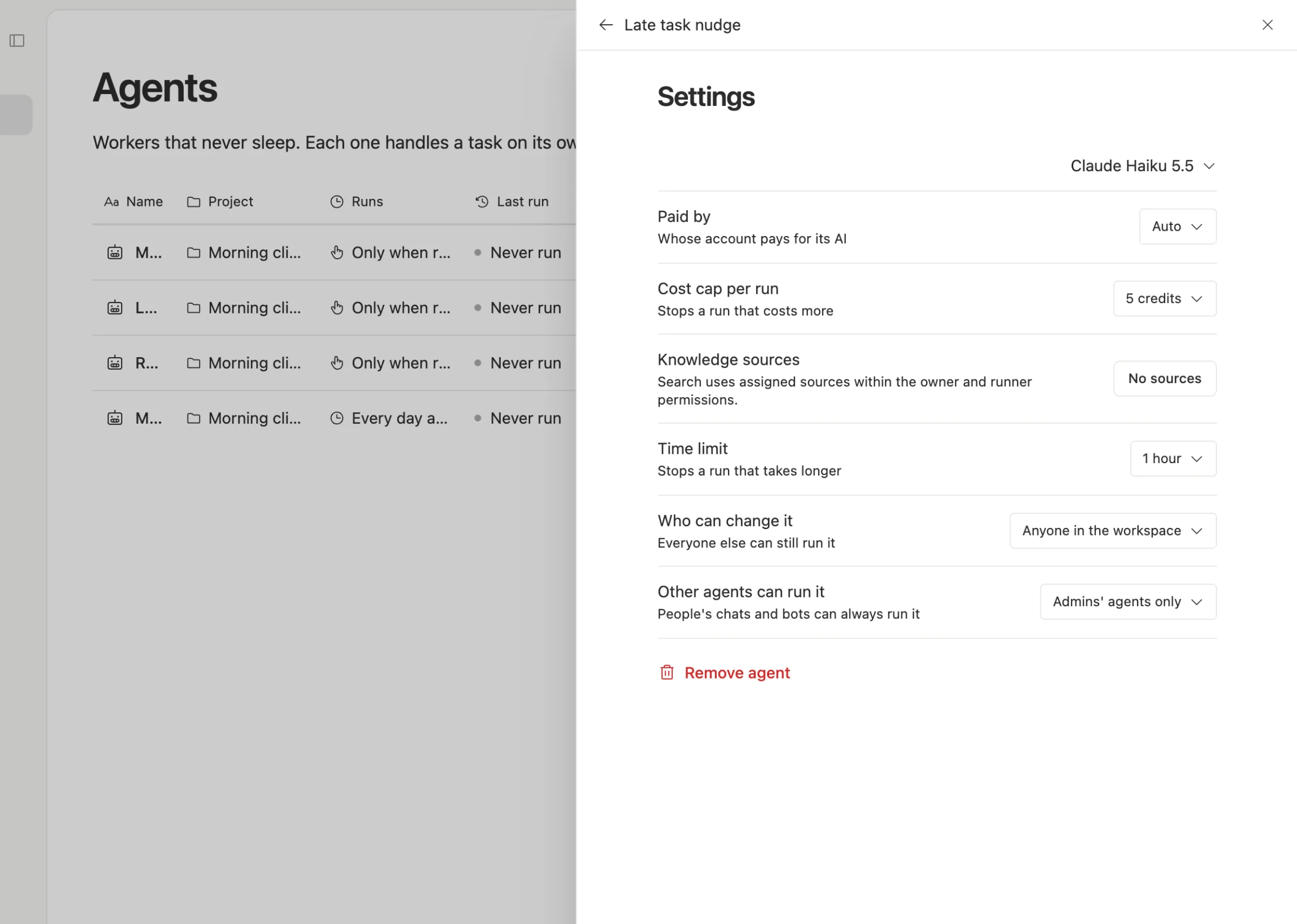
4. Set a time limit. A run that takes longer than you pick is stopped. Stuck loops tend to run long, so this catches them even when each step is cheap.
Then check Usage. In Settings, under Plan and payments, the Usage tab shows what used your credits, by model. A cheap model that does the job well is the best limit of all.
Two more things work in your favor. Credits are bought upfront. When they run out, the AI stops until someone adds more, and auto top-up stays off until you turn it on. And if an agent runs on your own OpenAI or Anthropic key, the hard limit you set above still applies on their side.
A setup that works for most small teams
- A hard monthly limit at the provider, about one and a half times your normal month.
- An alert at half of it, so you hear early.
- A cost cap on every agent, two or three times what a normal run costs.
- A time limit that fits the job. A morning summary doesn't need an hour.
- One project or key per agent, so you can see who spent what.
Common questions
Does an OpenAI budget stop requests? Only if Enforce a hard limit is on. Without it, the help page says the limit monitors spending and requests continue.
Can spending go over a hard limit? A little. OpenAI says enforcement isn't instant, so recorded spending can slightly exceed it.
What happens when a Team Brain agent hits its cap? That run stops. The agent's next run starts fresh, and your other agents aren't affected.
Can I use my own API key in Team Brain? Yes. In the agent's settings, pick who pays for its AI. See pricing for the rest.