How to sort incoming requests with AI (without letting it decide)
Google just launched an API that only picks from a list. That idea is the safe way to let AI sort your team's requests: the AI picks a label, your own rule decides what happens. Here's how it works and how to set it up.
Monday morning, twelve new requests. "Can you do our Instagram?" "The form is broken." "Need a poster by Friday." Someone has to read each one, decide whose it is, and pass it on. It takes an hour, and it's the most boring hour of the week.
You've probably thought about handing that hour to AI. And you've probably hesitated, because you've seen an AI answer with total confidence and be wrong.
That hesitation is right. The fix isn't to trust AI more. It's to give it a much smaller job.
Google just shipped the idea in one API
This week Google launched the Gemini Decisions API, and it hit the top of Hacker News. It runs a model, Gemini Decision 1, that doesn't write text at all. It only picks.
You give it an input and a question. It answers yes or no, or picks one option from a list, or grades against a rubric, and each answer comes with a score between 0 and 1. Google's post says it takes text, images, audio, video and PDFs, up to 1,000 questions per request, and costs $0.10 per million input tokens with nothing charged for output. It's in preview in Google AI Studio, aimed at developers.
People on Hacker News split on it. Some asked where this is even useful. One tester said it gave them far better calibrated scores than the decision model they used before. Another said it felt overpriced next to a cheaper model they'd tested.
The useful part for you isn't the API. It's the shape of the job: AI picks from a list you wrote. It never invents the answer.
Why "pick from a list" is the safe version
When you ask AI "what should we do with this?", it can say anything. When you ask "which of these four is it?", the worst it can do is pick the wrong one of four. And you can catch that.

So the setup always has two halves:
- The AI's half: read the messy words and pick one label from your list. Add a "Not sure" label it's allowed to use.
- Your half: a plain rule that says what each label means. Design goes to Maya. Copy goes to Priya. Not sure goes to a person.
One builder on X described building an AI support tool the same careful way: start with a review screen, draft only, no send access, and test the ugly cases first. Another said routine triage is fast to automate, but refunds and sensitive issues still need a person.

And sometimes you don't need AI at all. If every request from one client is always web work, or a form already has a "type" dropdown, a plain rule is faster, free and never wrong. Use AI for the messy middle.
A word on "how sure"
Gemini Decision 1 returns a real score with each pick. A regular chat model can also tell you how sure it is, but that number is the model's own guess about itself, not a measured probability. One Hacker News commenter linked a write-up on exactly that: the trouble with asking an LLM for its confidence.
So treat a chat model's "how sure" as a hint, not a gate. The real safety net is the "Not sure" label and a person who checks those.
The Team Brain way, step by step
In Team Brain the requests already live in a table, so the sorting happens right where the team works. Here's the setup for a small studio's Client requests table.
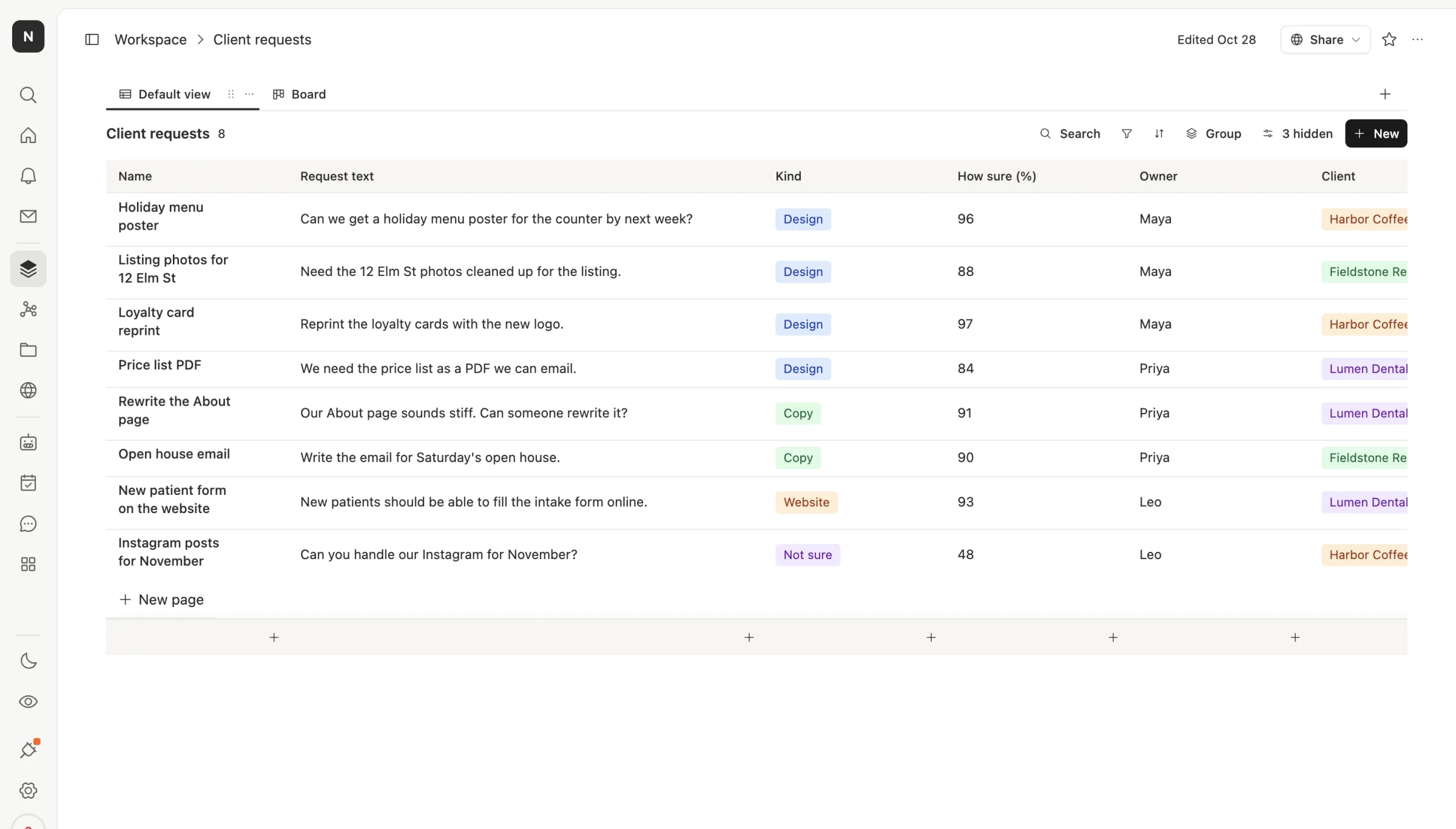
1. Add the columns. A Kind select with your labels: Design, Copy, Website, and Not sure. Keep the list short. Four is plenty.
2. Write the rule table. In plain words, decide who owns each label. Design is Maya, Copy is Priya, Website is Leo, Not sure goes to the team lead.
3. Make the agent. Open Agents, click New agent, and describe it: "When a new row is added to Client requests, read the Request text. Pick exactly one Kind from Design, Copy, Website or Not sure. Use Not sure if it fits more than one. Then set Owner by this table." Brain writes the agent for you. The picking is one small AI call. Everything after it, setting the owner, is ordinary code that does exactly what you wrote.
4. Pick a cheap model. Choosing one label from four is easy work. Open the agent's Settings and pick a small model. You can also run it on your own AI account.
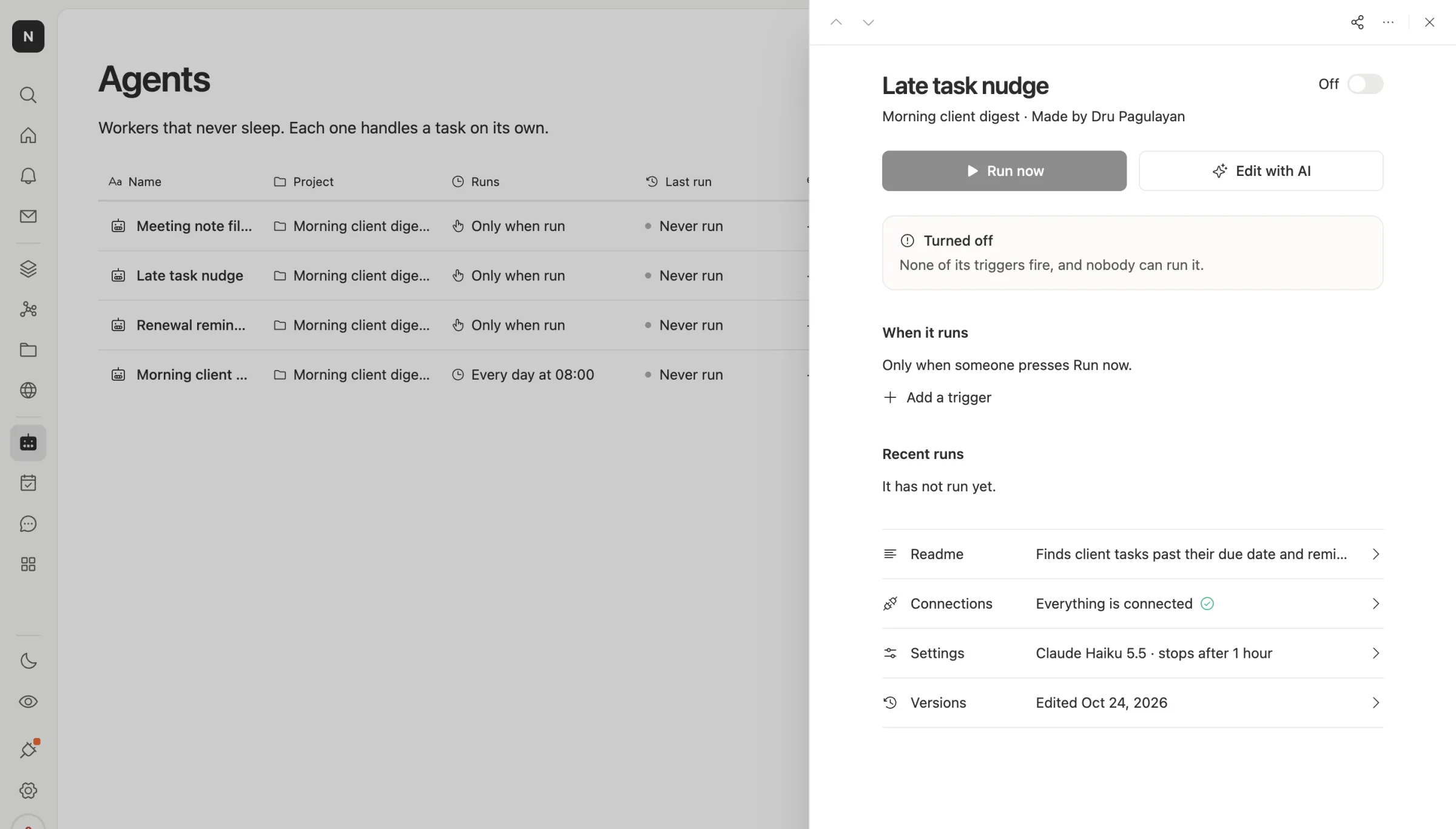
5. Test it on last week's requests before you switch it on. Run it by hand on a few rows and read every pick. When you're happy, add the trigger so it runs on each new row.
Here's what the table looks like with the columns the agent fills. Most rows are clear. "Can you handle our Instagram for November?" could be copy or design, so it's marked Not sure, and a person decides.
Want Google's calibrated scores instead? A Team Brain agent can call the Gemini Decisions API itself with your own Google key, and keep the same rule half in plain code.
What it costs
The table, the agent and the rule are part of the free Team Brain workspace, with no seats. You pay only for the AI each pick uses, or run it on your own AI account. A one-label pick from a short message is about as small as an AI call gets.
Common questions
Do I need to code? No. Describe the agent in plain words and Brain writes it. You can read and edit what it wrote.
What if it picks wrong? Change the Kind by hand. The owner rule follows the label, so fixing the label fixes the routing.
Can it sort emails, not just table rows? Yes. A Team Brain agent can run when an email lands in a connected inbox, pick a label, and write a row into the table.
When should I use the Gemini Decisions API directly? If you're a developer sorting very large volumes, or you need images, audio or PDFs scored, it's built for that. For a team's daily requests, a small model and a "Not sure" label usually do the job.