How to switch AI models when yours starts to feel worse
Your AI felt sharp last month and sloppy this week. Here's how to test whether it really changed, how to switch models in Claude, and how to move your team's agents to another model without rebuilding anything.
You asked the same question you asked last week. The answer came back shorter, vaguer, and wrong in a way it wasn't before. You read it twice and thought: did it get dumber, or did I?
You're not imagining the feeling, and you're not alone with it. This week one well-known builder asked whether Opus 5.5 felt dumber, and ten thousand people liked it. Another person ran a poll with three answers: nerfed, tighter limits, or nothing changed.
Nobody outside the lab can tell you which one it is. But you can find out what it means for your own work, and you can switch in a few minutes when the answer is "move".

First, check it's the model and not the setup
Before you switch, rule out the three things that make a good model look bad.
Your instructions are old. Models change how literally they read you. A file of rules written for last year's model can steer this year's one the wrong way. One builder argued that an old instructions file was burning tokens and dropping accuracy on the new Opus. Read yours and cut anything you can't explain.
You switched halfway through a chat. Tibo made this point plainly: switching model or effort in the middle of a thread is a lot like starting over. The new model reads a conversation it didn't have. Start a fresh chat for the test.
"Feels dumber" isn't something you can test. One developer put it well: a feeling isn't a bug report. Save three real prompts you run every week, plus the answers you were happy with. That's your test. When the model feels off, run those three and compare.
How to switch models in Claude
In the Claude apps, the model you're using sits right next to the send button. Anthropic's help page on which models you can use lays out the steps:
- Open a new chat or an existing one.
- Click the model name next to the send button.
- Pick another Claude model. "More models" shows the rest.
The change applies from Claude's next reply, and you can switch at any time. On an Enterprise plan, your admin may have turned some models off for your role.
ChatGPT, from OpenAI, has its own model menu, and what's in it depends on your plan.
This works fine for one person in one chat. It gets harder when the AI isn't just chatting with you but doing jobs for your team on a schedule.
Why switching is harder for a team
A chat is one person's choice. A team's AI work is spread out: a script that sorts leads, a bot that writes the weekly report, a prompt someone pasted into a shared doc. Each one is tied to a model, and nobody has a list of which.
So when a model gets worse, or more expensive, or hits its usage limit, someone has to find every place it's used and change each one by hand. Usually nobody does, and the team just lives with worse answers.
Price matters here too. The gap between models is huge, even inside one company:

Those are Anthropic's own API prices, checked October 26, 2026. A job that sorts emails into three folders doesn't need the top model. A job that writes a client proposal might. Picking per job is where the money is.
How to switch an agent's model in Team Brain
In Team Brain, every agent shows its model on its own page. You don't hunt for it in code.
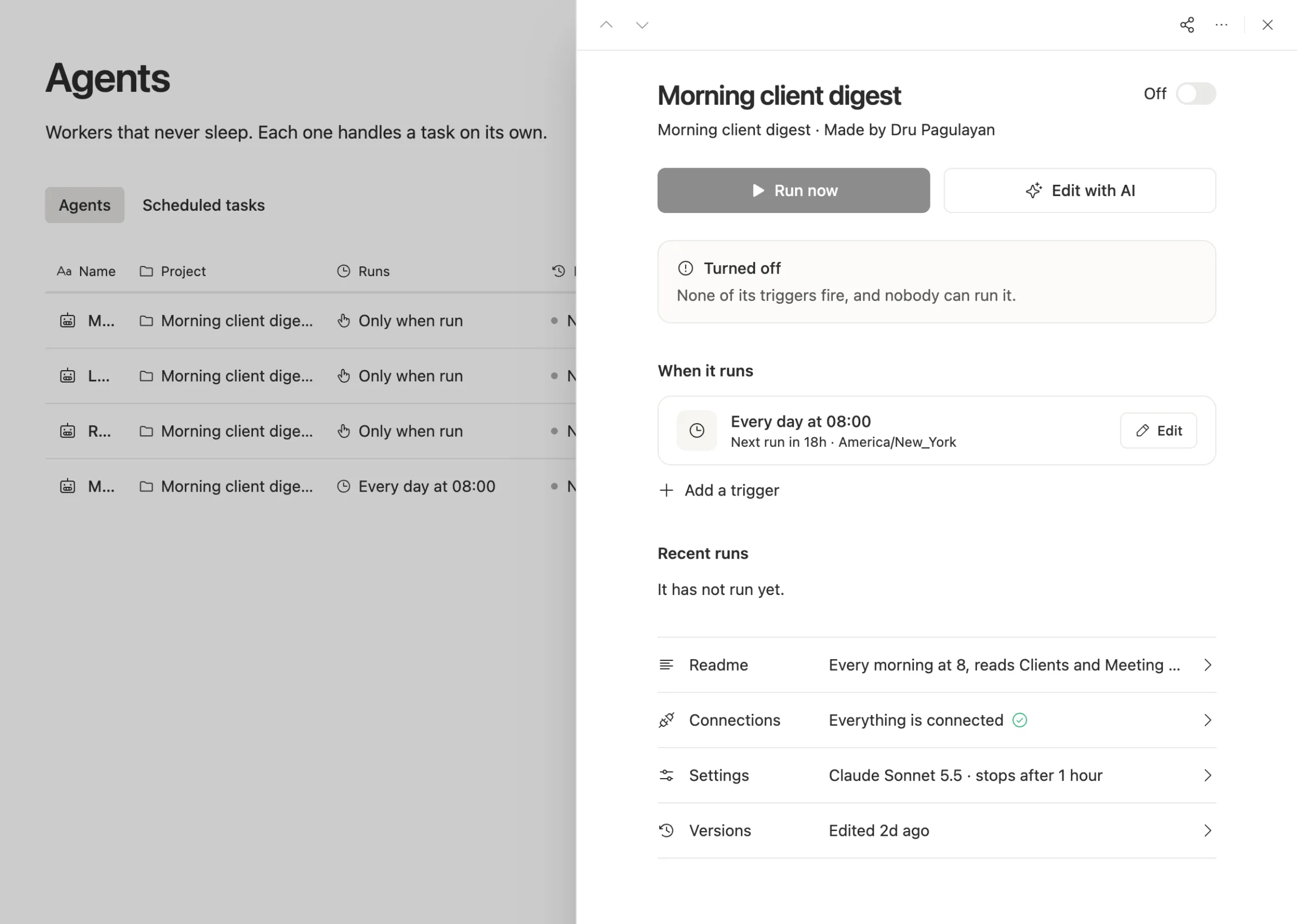
Here's how to move one agent to another model:
- Open the agent. Go to Agents and click the one you want to change.
- Open Settings. The AI model is the first line.
- Pick a model. You can choose from Claude, GPT, Gemini and Grok models, or leave it on Auto.
- Run it once. Click Run now and read what it wrote, next to what the old model wrote last time.
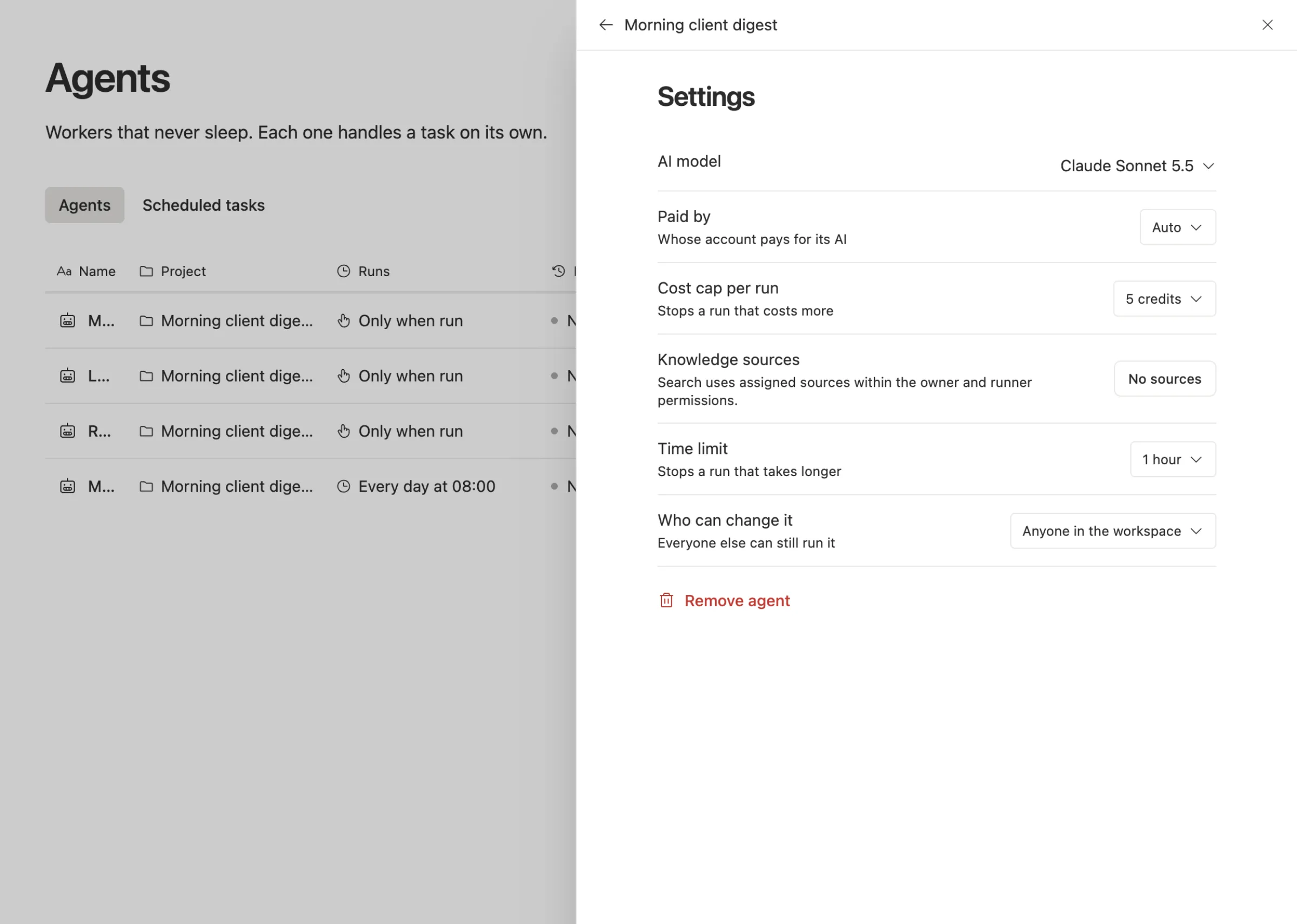
Three settings sit right under the model, and they matter as much as the model itself:
- Paid by decides whose account pays: workspace credits, your own AI subscription, or your own API key. If you already pay for Claude or ChatGPT, your agents can run on that.
- Cost cap per run stops a run that costs more than you set. When you try a pricier model, the cap means one bad run can't eat your month.
- Time limit stops a run that takes too long.
The agent's instructions, its tables and its schedule don't change when you switch. Only the brain behind it does. That's what makes it cheap to try: switch, run once, compare, and switch back if the old one was better.
A simple rule for picking a model
You don't need a spreadsheet of benchmarks. Use the jobs you already have.
- Sorting, tagging and short replies: start with the cheapest model. Move up only if it gets things wrong.
- Writing people will read: a middle model is usually enough. Compare two on your three saved prompts.
- Long jobs with many steps: these are where the top models earn their price.
Then check back when something changes, like a new release, a price change, or that "is it just me?" feeling. Run your three prompts. Switch if the answer tells you to.
Common questions
Do I lose my work when I switch models? Not in Team Brain. The agent keeps its instructions, history and tables. In a chat app, switching mid-thread keeps the messages, but the new model has to pick up a conversation it didn't have, so start fresh for a fair test.
Can I use different models for different jobs? Yes. Each agent has its own model, so your email sorter can run on a cheap model while your proposal writer runs on a top one.
Can I use the Claude or ChatGPT plan I already pay for? Yes. Set Paid by to your own subscription, or connect your own API key. See pricing for how the rest works.
What does Team Brain cost? The workspace is free for any number of people. You pay only for the AI you use, or nothing extra when you bring your own.