How to turn meeting notes into follow-up tasks that get done
The call ended with five next steps. A week later, two happened. Here's how to get action items out of Zoom's AI Companion, and how to turn them into tasks with an owner and a date in Team Brain.
The client call ended well. Everyone nodded. "Great, I'll send the revised scope, you'll check with the owner, and we'll talk Friday." Then the next call started.
On Friday nobody's sure who was sending what. The notes exist. They're in an email, or a folder, or the recording. Nobody opened them.
That isn't laziness. The notes did their job, which was to remember. What they didn't do is turn into work someone owns.

Why AI notes alone don't fix it
AI meeting notes are good now. They catch the decisions, the owners and the dates. But people keep running into the same three problems.
They pile up unread. One person said AI summaries mostly end up in a folder nobody opens, and give a joke the same weight as a decision.
They assign work nobody agreed to. Another person said the notes listed them for most of the actions, and they don't remember saying yes to any of it. A third put the fix plainly: an action item needs an owner who has accepted it, not one the AI picked.
They miss the owner entirely. "Someone should follow up" is a sentence, not a task. One reply summed up AI action items in a line: they often miss who actually owns the task.
So the job isn't "take better notes." It's "move the next steps out of the notes and into a list your team already checks."
The Zoom way: AI Companion summaries and Zoom Tasks
If your calls run on Zoom, its AI Companion can write the summary for you. Zoom's guide to using Meeting Summary lays out how:
- You need a licensed Zoom Workplace Pro, Pro Plus, Business, Business Plus, Enterprise, Enterprise Plus or Enterprise Bundle account, with Meeting Summary turned on.
- Start the meeting as host, open the Zoom AI menu at the top right, check Meeting summary, and click Start Zoom AI. Only the host or a co-host can start it.
- After the call, the summary arrives by email to signed-in participants. It also shows up in the web portal under Summaries.
To turn the summary into tasks, Zoom has AI task creation in Zoom Tasks. With Zoom Tasks and its AI setting turned on, suggested tasks appear under Next Steps in the summary. In the Tasks tab, under Recommended, you assign someone and click Accept to keep each one.
That works well if your whole team lives in Zoom. The catch is where the task ends up. It's in Zoom, next to the meeting. Your client list, your project notes and the rest of your team's work are usually somewhere else.
The Team Brain way, step by step
In Team Brain, the note, the client and the tasks sit in one workspace and link to each other. Here's the routine an agency uses.

1. File the note under the client. Every meeting is a row in a Meeting notes table, linked to the client it was about, with the date and a one-line summary on top. Paste in the transcript or your notes, and write the next steps as a checklist at the bottom.
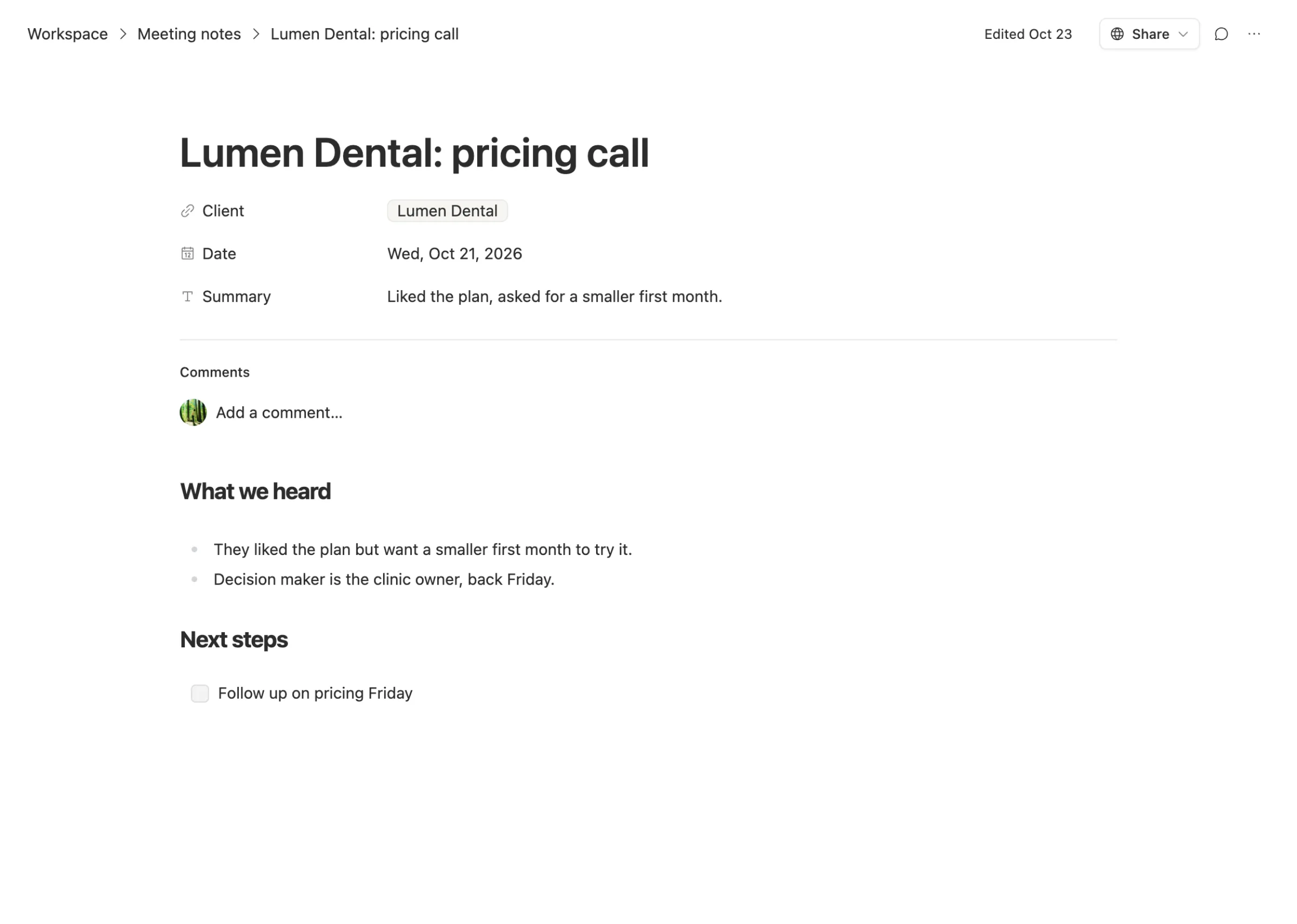
You don't have to file it by hand. You can set up an agent that takes a pasted call transcript and turns it into a meeting note row linked to the right client.
2. Pull out the next steps. Open the AI chat on the note and ask it to turn the next steps into rows in your tasks table, with the client linked. Each step becomes its own task.
3. Have the owner say yes. This is the step AI tools skip. Before you're done, read each task and fix the owner and the date. If someone didn't agree to it on the call, it doesn't get their name. If no date was said, leave it empty and ask.
4. Work from the board. The tasks land on the same board your team already uses, grouped by status, each with an owner, a due date and the client.
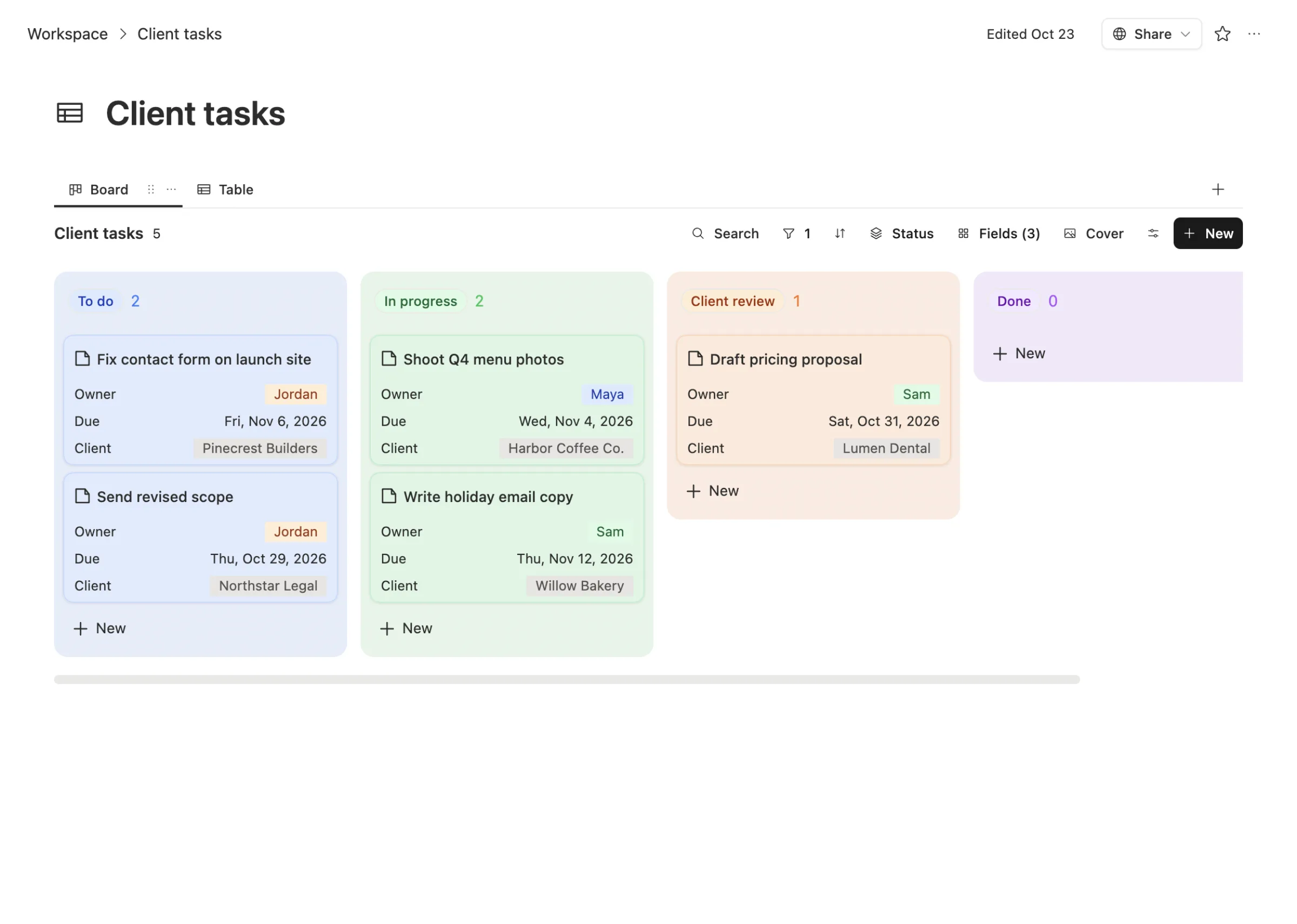
5. Nudge once when something's late. An agent can check the board every morning, find tasks past their due date, and remind the owner once. One reminder, not a stream of them.
Small rules that keep the list honest
- One task, one owner. "The team" can't own anything.
- No date is better than a made-up date. An empty due date tells you to ask. A fake one tells you a lie.
- Link it to the client. Open the client and you see every note and every open task in one place.
- Close the loop on the call. Spend the last two minutes reading the next steps out loud. Whoever says "mine" owns it.
Common questions
Do I need Zoom for this? No. Any notes or transcript work. Paste them into the meeting note, from Zoom, Google Meet, a phone call or your own typing.
Will the AI assign tasks to people on its own? Only if you let it. The step that matters is the owner saying yes, so read the tasks before you're done.
Can it remind people automatically? Yes. An agent can check due dates on a schedule and remind the owner once when a task is late.
What does it cost? The workspace is free for any number of people. You pay only for the AI you use, or bring your own AI account. See pricing.