How to export a Trello board to CSV, and what it leaves out
Trello lets every board member export JSON, but CSV needs Premium. Here's how each export works, what a Trello CSV leaves behind, and how to turn it into a working board and table in Team Brain.
Someone asks for "a list of everything on the board." Maybe it's your boss before a review. Maybe it's an accountant who wants every client job from last quarter. You open the board menu in Trello, look for Export, and find that the option you need is greyed out, or that it hands you a file full of curly brackets.
You didn't miss anything. Trello's exports depend on your plan and your role, and nobody tells you that until the day you need one. Here's how each one works, what you get, and what to do with the file once you have it.

The three Trello exports, and who gets each one
Everything below comes from Trello's own help page on exporting data, checked today.
JSON, on every plan. Any board member can export a board as raw JSON. It holds the most recent 1,000 actions on the board, which includes comments. It's complete enough for a developer, and close to unreadable for everyone else.
CSV, on Premium. Boards in Premium Workspaces can be exported to CSV, which opens in any spreadsheet program. Each person in a Premium Workspace can do it.
The whole Workspace, for Premium admins. A Workspace admin can export every board at once, in CSV and JSON, and can tick a box to include the attachment files in a ZIP.
Premium is $10 per user a month on yearly billing, or $12.50 on monthly, per Trello's pricing page. So if you're on Free or Standard and need a spreadsheet, you have two honest options: ask someone on a Premium Workspace, or take the JSON and turn it into a table yourself.
How to export one board to CSV
If your Workspace is on Premium:
- Open the board.
- Open the board menu.
- Choose Print, Export, and Share.
- Pick the CSV export.
The file downloads straight away.
Want archived cards too? The normal CSV only includes cards that aren't archived. Trello's help page has a trick for this: open the board, click in your browser's address bar, type .csv at the end of the board's link and press Enter. The file that downloads has open and archived cards.
What a Trello CSV leaves behind
A CSV is a flat table, so some things don't fit in it.

- Comments aren't in the CSV. For those you need the JSON, and even then only the latest 1,000 actions per board. The Workspace export gets you the full set.
- Attachments come as links, pointing to files still hosted on Trello. Only the Workspace export can bundle the files themselves.
- Inbox cards don't export at all. Move them to a board first.
- You can't import it back. Trello says it's not possible to recreate a board from a JSON or CSV export.
That last one matters more than it sounds. An export is a snapshot, not a backup you can restore. One person on Hacker News asked years ago whether anyone had a real plan for when a SaaS tool goes away. Most teams still don't. Another put the test simply: before you rely on a tool, try taking one small result somewhere else and see if it still works there.
How to turn the CSV into a working board in Team Brain
A spreadsheet answers today's question. If you want the board to keep working, with columns you can filter, a board view and cards that still hold their notes, you can bring the CSV into Team Brain. The workspace is free for any number of people, as our pricing page shows.
Step 1. Tidy the file. Open the CSV and move the card name column to the front. Team Brain uses the first column as each row's title. Delete columns you'll never look at.
Step 2. Import it. In the sidebar, click + next to Workspace and choose Import. Drop the CSV in. Team Brain reads each column and picks a type for it: dates become dates, a column with a few repeated values (like your list names) becomes a select, and comma-separated values (like labels) become a multi-select.
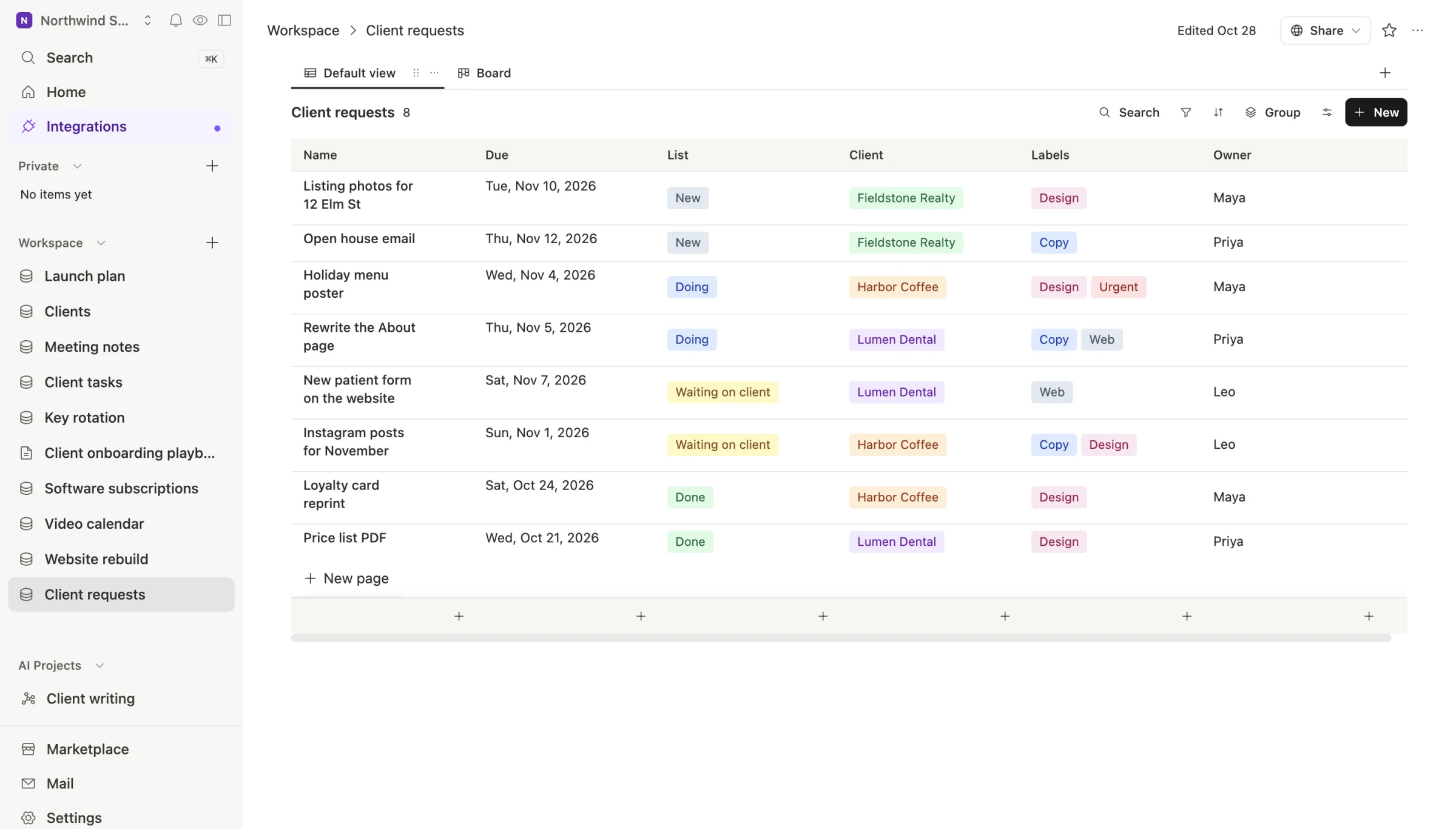
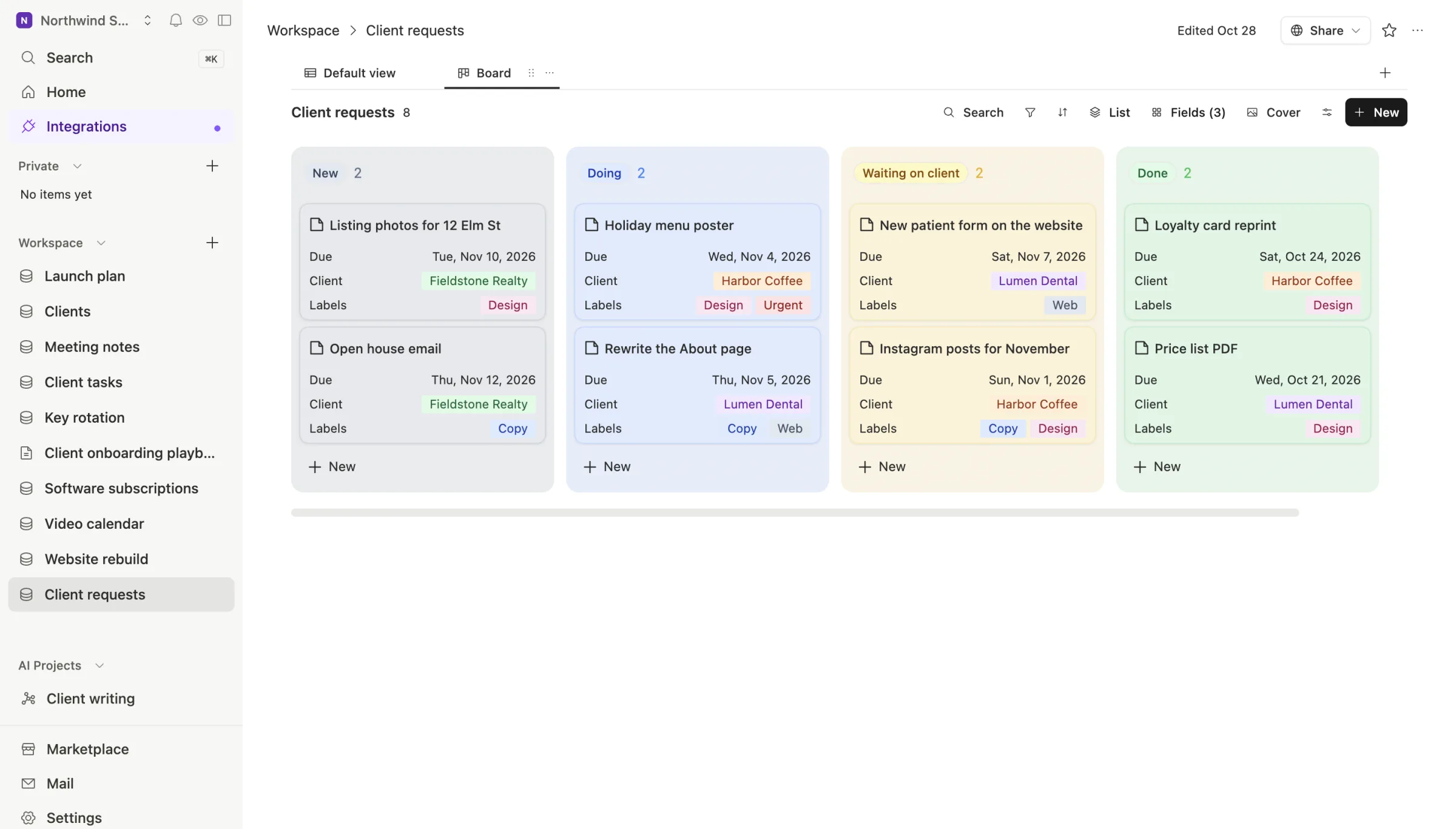
Step 3. Add a board view. Click + next to the view tabs, choose Board, and group it by your List column. You're back to columns and cards.
Step 4. Bring the comments you care about. Since they aren't in the CSV, open the handful of cards whose history still matters and paste the key decisions into the card's page. Don't move every comment. Move the ones someone will ask about.
If you're on Free and only have JSON
The JSON export holds your cards too, buried in a nested file. The quickest honest route is to ask an AI chat to turn it into a CSV with the columns you want: card name, list, labels, members, due date and description. Check a few rows against the board before you trust it. Then import the CSV the same way as above.
Common questions
Does Trello's CSV include checklists and custom fields? Trello's help page doesn't list the CSV's columns, so open your own file and check before you rely on it.
Can I export every board at once? Yes, if you're an admin of a Premium Workspace. Go to the Workspace's Settings, then Export.
Will my Trello automations come across? Not through a CSV. Write down what each one does, then rebuild only the ones you still need.
Is there a Team Brain vs Trello comparison? Yes: Team Brain vs Trello covers prices, limits and when to stay.